Viewing Dashboards
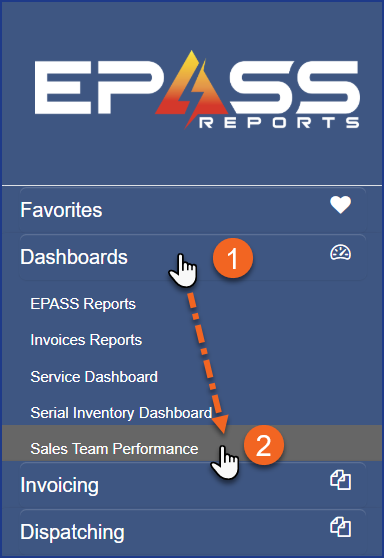
When a User logs into EPASS Reports, they'll be able to view all the dashboards that they have been assigned to. All dashboards that a User can view are listed in the left navigation. To view a dashboard, expand the Dashboards section, and then click the dashboard name to load it.
Setting the Dashboard as the Default
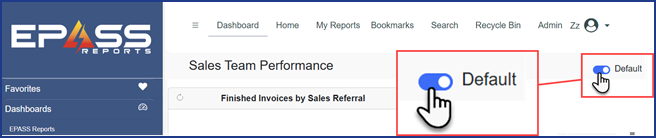
To set a dashboard as the default that is loaded when EPASS Reports starts, view the dashboard and then click the Default slider.
Interacting with Dashboard Widgets
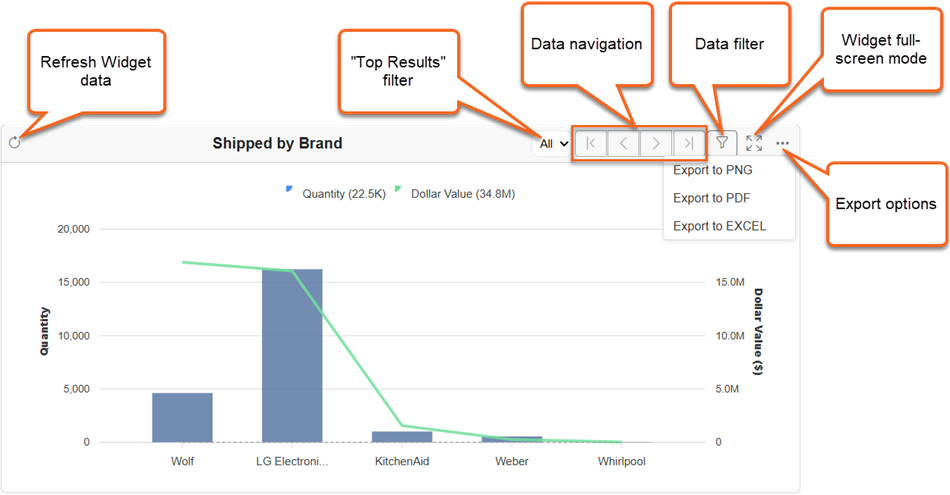
Each Widget on the dashboard will have a series of controls that can be used to better view and analyze data.
Data Filter 
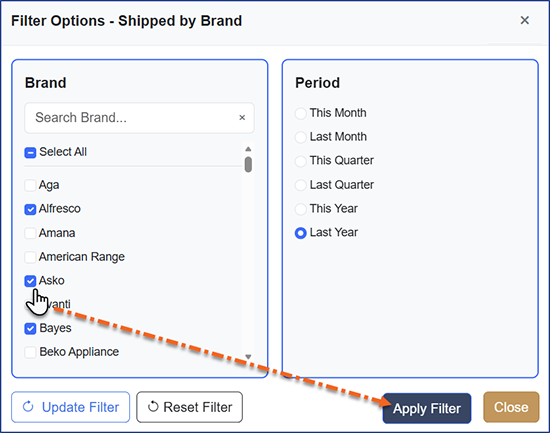
You can change the data that is displayed in the Widget by adjusting the Filter options. Select the new Filter options, and then click Apply Filter.
-
You can save your filter options if you have the Admin - Edit All Dashboards security option. See Managing Dashboard Security for more information.
-
Clicking Reset Filter reverts the filter to its previous saved state.

-
Clicking Update Filter refreshes the filter options. Use this to ensure that you have the most recent list of filter options.

Full Screen Mode 
You can expand a widget to full screen by clicking the Full Screen Mode button. To exit Full Screen mode, press ESC.
Exporting 
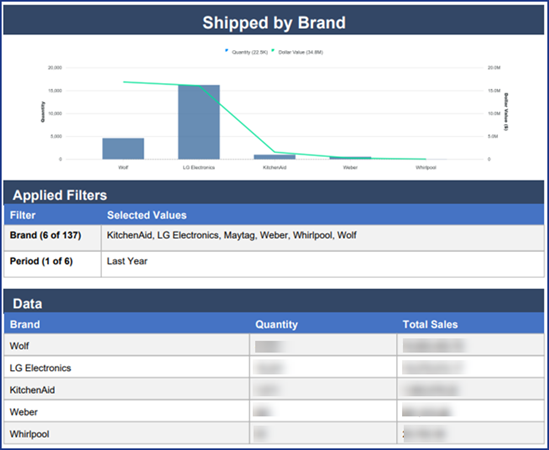
Clicking the Export button allows you to export the Widget data to an image (PNG), a PDF, or an Excel File. The PDF and Excel exports include the Widget chart, as well as the filters currently selected, and a breakdown of the data.
Navigation 
Some Widgets that display a large amount of data on the X-axis are equipped with navigation buttons. These button allow you to "page" forward and backwards through the data.
Top Results Filter 
Some widgets that display a large amount of data on the X- or Y-axis are equipped with a Top Results Filter. This filter allows you to view the top 5, 8, 10, 25, or 50 results. You can also select All to include all data.